Read the activity timeline
For operators who want to see what happened in the application over a given time window: tasks launched, tools called, approvals, LLM calls, memory, delegations between agents, errors.
Prerequisites
- At least one task or agent has run recently.
- The developer mode is on (Settings, section Developer). Observability is one of the technical screens: the sidebar shows it only with that mode.
Where to look, depending on what you need
| You are looking for… | Go to… |
|---|---|
| What is waiting for your answer right now | To review, see Use the To review list. |
| The history of one specific agent (statuses, durations, task input/output) | Agents, then Logs in the menu of the agent, see View an agent's logs. |
| A specific event (an LLM call, a tool run, an approval) over a time window | Observability, tab Timeline (this page). |
| Who did what, and with which result, for a control or an investigation | Activity log, see Read the audit trail. |
The timeline, for what happened
-
In the sidebar, click Observability, then the Timeline tab.
-
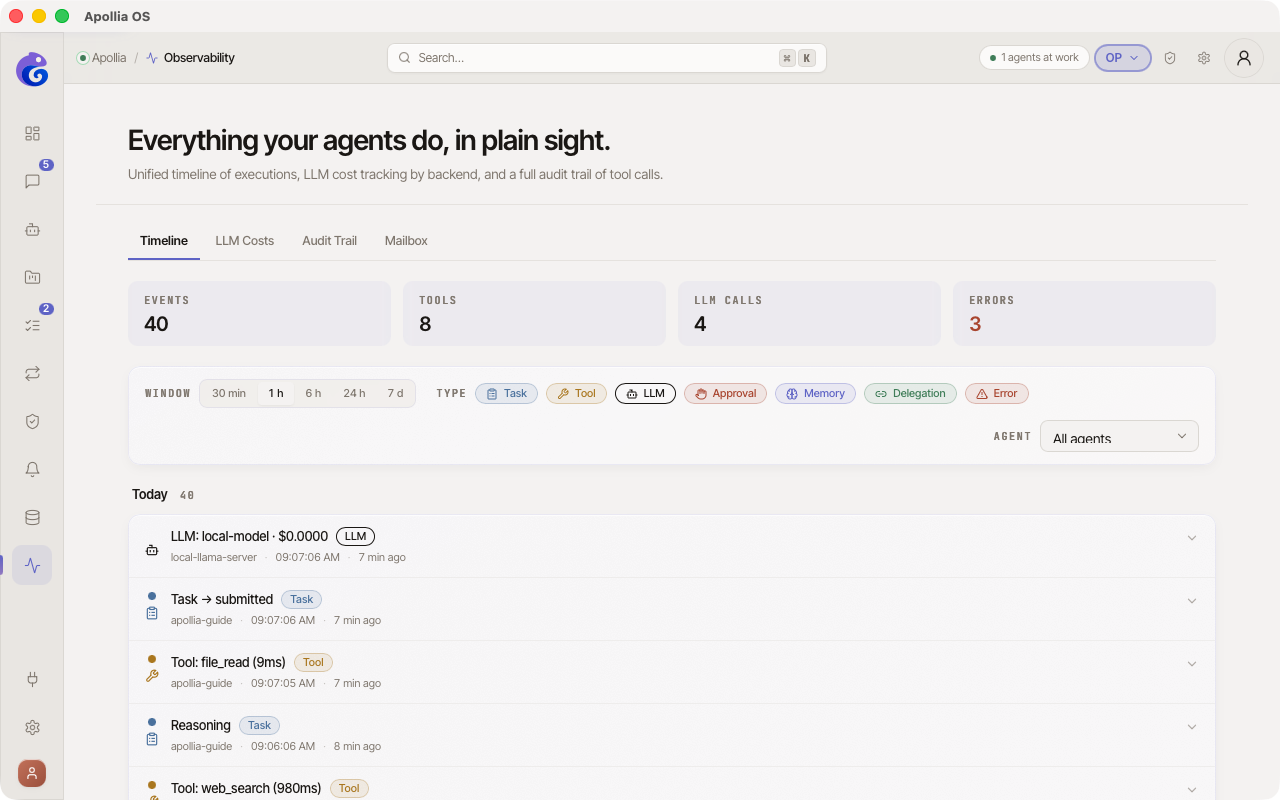
At the top, four KPIs summarise the current window: Events · Tools · LLM calls · Errors (counter in red if > 0). The KPIs react to the filters: if you hide tools, the Events total goes down.
-
Choose the time window: 30 min / 1 h / 6 h / 24 h / 7 d. Default: 1 h. Events reload automatically about every 15 seconds.
-
Filter the events:
- Type: 7 rounded chips (Task / Tool / LLM / Approval / Memory / Delegation / Error). Each chip enables or disables its category; greyed-out chips are disabled.
- Agent: dropdown selector to see only the events of one specific agent.
-
Events are grouped by day with a header ("Today", "Yesterday" or the full date) and a counter on the right. Each row shows:
- A coloured dot and an icon matching the type.
- A readable title.
- A type badge, the agent, the exact timestamp to the second, in the form your application language uses, and the relative age ("3 min ago").
-
Click a row to expand the raw content of the event, as formatted JSON. Click again to collapse.
Follow one task from end to end
At the top of the Timeline tab, a Scope selector holds two positions:
- All activity, the window described above, every agent and every event type mixed.
- One task, which narrows the whole tab to a single run. A Task dropdown appears next to it, each entry reading agent · status · short identifier.
In the One task position, the tab shows the Task timeline: everything Apollia recorded for that run, oldest first, aggregated from five sources (status transitions, plan steps, model calls, tool invocations, approvals). Each row carries its icon, its title and the machine facts that go with it: the tool and its duration, the exit code, the backend and its model with the tokens in and out and the cost, the wait before an approval was answered. A failed step or a failed tool call tints the row and is flagged Failure, and a content the engine had to cut is marked as truncated.
The Hooks tab
Besides Timeline, LLM Costs and Mailbox, the tab bar carries four more technical tabs: Delegation, Plan Cache, Hooks and Capture policy. Hooks lists the lifecycle handlers registered when the engine started, read from the configuration file. One row per handler, with its type (command or http), the events it subscribes to, its timeout and its target (the command line, or the URL).
It is read only, and it is a startup fact, not a live feed: the registry is built once from the configuration, with no dynamic registration and no reload on the fly. An empty list means no hook is declared, which is a clean state, not a failure.
Verification
You find your recent runs in the chosen window. Widening the window from 1 h to 24 h brings up more older events without a manual refresh.
If it does not work
- Observability is not in the sidebar: the developer mode is off. Turn it on in Settings, section Developer.
- The timeline is empty: the default window (1 h) may hold no activity. Widen it to
24 hor7 d. If it stays empty over7 d, no activity was recorded in that window. - An expected event does not appear: check the type chips and the agent selector, an active filter can hide the row. If all the type chips are greyed out, nothing shows.
- I want the detail of a whole task, not a granular event: use the One task position of the Scope selector, or go through Agents, then Logs in the menu of the agent concerned.
Concept: Apollia explanation