View an agent's logs
To understand what an agent did, or why it failed: open its Logs panel and browse the history of its tasks.
Prerequisites
- The agent is installed and has received at least one task.
- Ideally, the agent has already run a mission (at least a few tasks available).
Steps
-
In the sidebar, click Agents.
-
Click the row of the agent whose activity you want to review. Its sheet opens.
-
Open the Activity tab of the sheet, then click Logs. A right-click on the row of the agent offers the same Logs entry. A panel opens on the right, titled Agent Logs, with a task counter at the top.
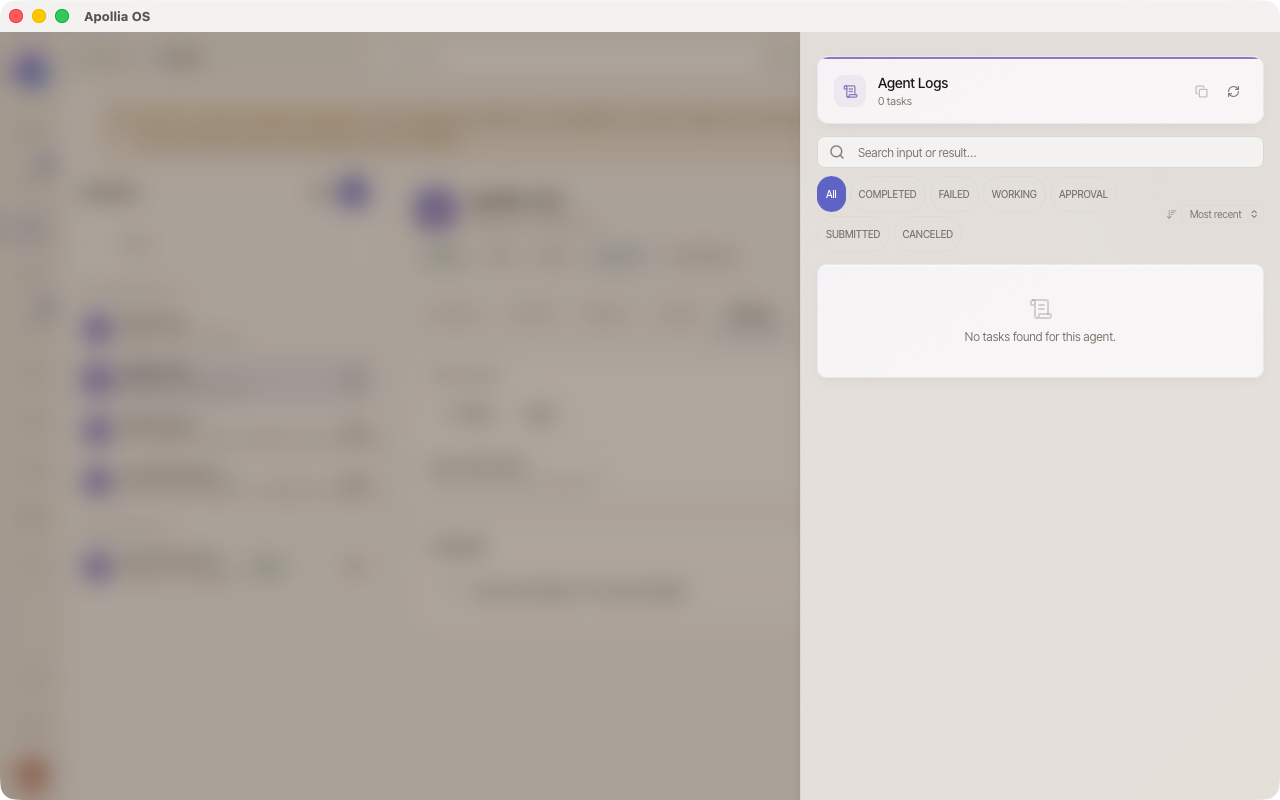
Note: this panel shows the history of the tasks run by the agent. It is not a text journal with Info/Warning/Error levels.
-
Each row in the list already carries the essentials - no need to click to open a detail view:
- Status (on the left) - see the list below.
- Execution duration (e.g.
850ms,2.4s,1m 30spast the minute). - Relative timestamp (e.g.
5min ago) - hover it to see the exact date and time. - Input received - the request that triggered the task.
- Result or Error - the output produced, or the error message if the task failed.
-
Identify tasks by their status:
- COMPLETED - task executed successfully.
- FAILED - task in error, to be examined.
- WORKING - task still running.
- APPROVAL - the agent is waiting for your decision, to give in the To review screen.
- SUBMITTED - task recorded, not yet picked up.
- CANCELED - task interrupted before the end.
-
Filter the list when there are many tasks:
- Type in the search bar to keep only the tasks whose input or result contains that word.
- Click a status chip (All / COMPLETED / FAILED / WORKING / APPROVAL / SUBMITTED / CANCELED) to see only that status.
- Use the sort menu at the top right of the filters to order by: Most recent (default), Oldest, Longest, Shortest.
- The counter at the top shows the number of tasks displayed vs total (e.g.
4 / 27 tasks). - If no task matches, a Reset filters button appears.
-
Refresh the list without closing the panel: click the
↻icon at the top right of the panel. The icon beside it, Copy logs, copies the tasks displayed to the clipboard. -
Close the panel to go back to the sheet of the agent.
Verification
You see the list of the agent's tasks with their status, their duration and a preview of the request and the result. A recently failed task is spotted at a glance thanks to its red FAILED status and its error message shown right below.
If it does not work
- No task displayed: the agent received no task yet. Hand it one, see Hand a task to an agent.
- Empty panel after a run: click
↻to refresh. - Unintelligible error: copy the message and see An agent is stuck.
Technical reference: Apollia reference - interpreting task statuses, troubleshooting a stuck agent or an agent in timeout.