Test an MCP connection
For any operator who wants to check that an installed MCP server really responds, or diagnose one in error.
Prerequisites
- At least one MCP server installed (see Connect an MCP server).
Steps
-
In Connections, click the MCP server to test. Its page opens in place of the list.
-
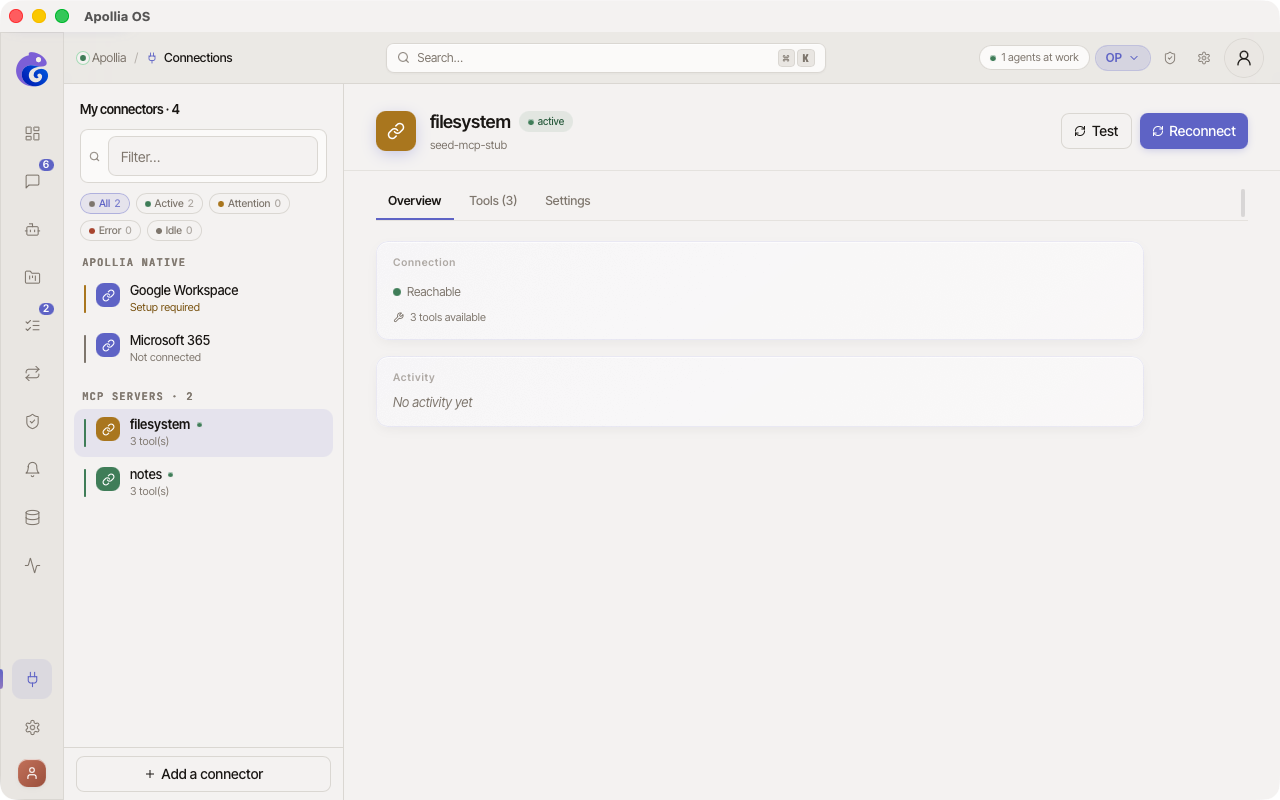
In the header of the page, click Test, next to Reconnect.
-
During the test, the button reads Testing… and is disabled.
-
The result appears as one line in the Overview tab. It carries a tool count, never a latency: nothing on the MCP path measures a response time.
- Working - N tools, last operation succeeded, in green.
- Reachable - N tools listed, not yet verified by an operation, in grey. The server answered the handshake, but no operation has confirmed it since.
- Attention needed - reconnect or check the authorizations, in amber. With developer mode on, the line says which: Reachable, but recent operations failed or Reachable, but authorization expired.
- The raw error message, in red, when the call itself failed.
On screen: the green Working line shown in the Overview tab of the server page.
Translated error messages, when a connection is added
These messages belong to the dialog that adds a connection from the catalogue, not to the test of an already-installed one. On the server page above, a failed test shows the backend message as it came, with no translation and no Show technical details link. When a connection is added and its trial fails, Apollia turns technical errors into clear messages:
- "Authentication refused - check your API key.": invalid or expired token (HTTP 401).
- "Access forbidden - your key doesn't have the required rights.": insufficient permissions (HTTP 403).
- "Service not found - check the URL or server name.": wrong URL or missing server (HTTP 404).
- "Network error - the service did not respond in time.": timeout or connection failure.
- "Command not found - the package is probably not installed.": stdio transport, missing binary.
- "The connection failed. Check your credentials and try again.": generic error.
In that dialog, a Show technical details disclosure reveals the raw backend message, Retry tries the connection again and Remove takes it out.
Verification
- The result line reads Working or Reachable, and its tool count is non-zero.
- The expected tools appear in the Tools tab.
- If some are missing, look at Apollia first: discovery keeps at most
max_toolstools per server, 256 by default, and logsmcp.tools.boundedwith what it kept and what it received when it cuts. A server response is also capped atmax_response_bytes. Only once both are ruled out does the remote server become the explanation.
If it does not work
- Network error: your machine cannot reach the server. Check your internet connection or, for a stdio MCP, the PATH of the command.
- Authentication refused: use Reconnect in the header of the page, and if that is not enough, use Disconnect in the Settings tab and add the server again with valid credentials.
- Access forbidden: your account does not have the rights on the provider side. Check the granted scopes or raise the permissions in the business tool.
- Command not found (stdio): for an MCP on stdio transport, the binary is not in Apollia's PATH. Install the tool or adjust the command.
- Test OK but the agent does not call the tool: open the agent's sheet and check, under Accesses, that the tools of this connection are granted to it. See Understand the scope of an integration.
Technical reference: Apollia reference , full error codes, MCP handshake semantics.