Connect an MCP server from the catalogue
For any operator who wants to enable an MCP server from the catalogue (Notion, Linear, Atlassian, Stripe, Time, etc.) in a few clicks.
Prerequisites
- Apollia running, the Connections page reachable.
- You know which service you want to plug in. The catalogue opens on the selection Apollia ships, listed in Integrations overview; the public MCP registry is one click further.
- For authenticated services, your credentials (API key or OAuth account with the provider).
Steps
-
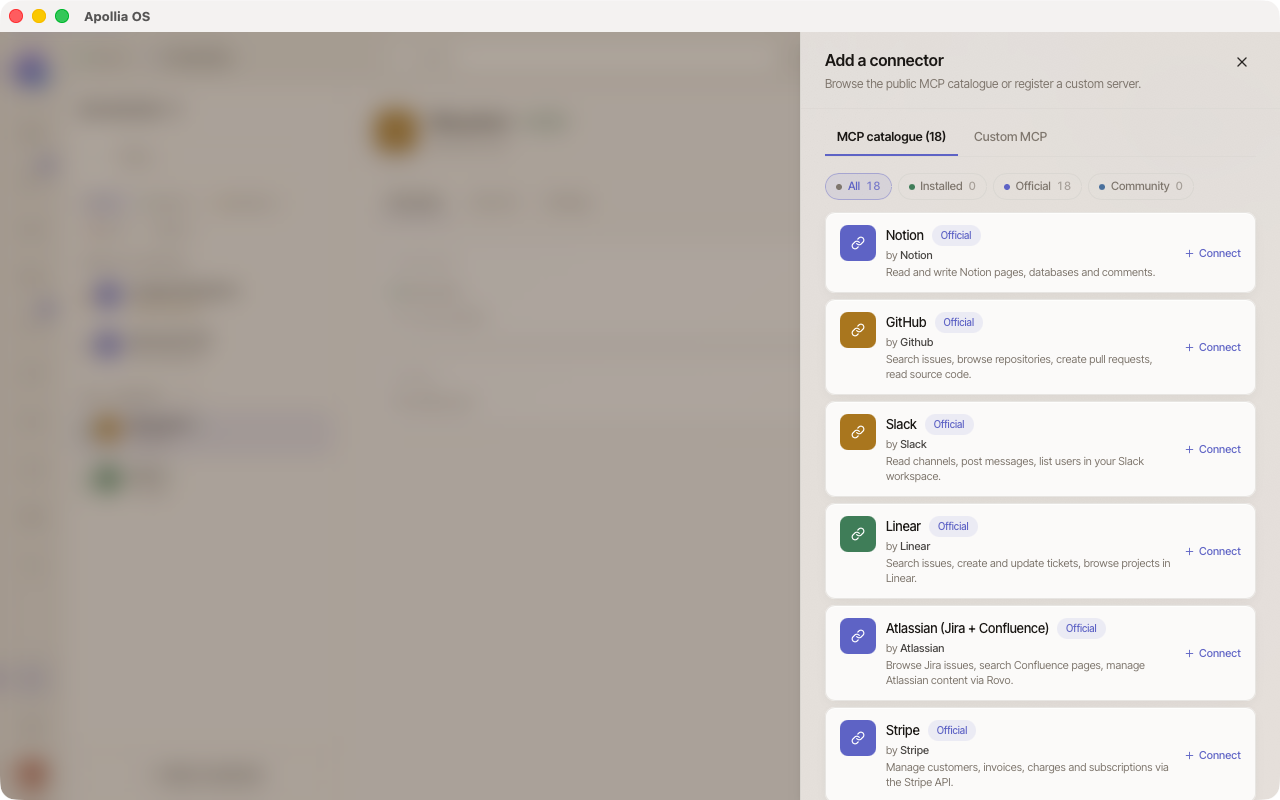
In the sidebar, open Connections, then click Add a connection at the top of the page. A sheet opens on its Catalogue tab.
-
Search for the entry you want, or filter the list with Official and Community, then click it. If it is not in the selection, click Explore all to load the public catalogue. A dialog opens: two gestures are yours, choosing the entry and accepting one warning, and the rest runs on its own.
The warning
The dialog opens on Before adding this connection: your agents will be able to use what the service offers, an action that sends, changes or deletes something asks for your agreement first, what they read or send goes through the service under its own terms, and you can remove the connection at any time. There is nothing to tick. Click Add; your agreement is recorded in the Activity log.
On screen: the warning, with the Cancel and Add buttons.
Authentication, only when the connection needs it
Apollia detects what the connection requires. Three possible cases:
- No authentication: this step does not appear, the connection is added straight away.
- API key or static token: a field appears for each value, masked when it is a secret. Paste your key, then click Add.
- OAuth: a Sign in to [Provider] button appears, with the Requested permissions when the server publishes them; untick the ones you do not want to grant. Click the button, your browser opens the consent page, authorize, the return is automatic. Then click Add.
On screen: the authentication step in the OAuth case, with the Sign in to [Provider] button and the list of requested permissions above it.
The trial, on its own
There is no test button to click. Once added, the connection is tried at once, and a component it needs is downloaded first when required. The dialog shows the result:
- Connection added and working, in green, with the number of tools available.
- The connection is added, but its trial failed, in red, with a precise message (invalid key, unreachable address, etc.). The connection stays added: click Retry to try it again, or Remove to take it out.
A refusal says who refused: your organisation's policy, for instance.
On screen: the result of the trial, in green, with the number of tools available.
Examples to try
Under the result, What can you do now? shows a few example cards, each with a Try button that opens a conversation with Apollia limited to the tools of this connection. Click Close to leave the dialog.
On screen: the example cards, each carrying a Try button, and the Close button.
Verification
- The connection appears in the Connections list with an active badge.
- Its page lists, in the Tools tab, the tools the server declares, with their description.
- Click Try on one of the example cards. The matching tool is called.
Note - deferred loading: by default,
[mcp] tool_loading = "deferred". The server's tool schemas are not all put in front of the model at startup: when the tools granted to an agent number at mosttool_search_limit, they are all declared, above it the agent callstool_searchto find what it needs. The tool count shown in the UI stays complete either way. See Configure deferred loading of MCP tools.
If it does not work
- The trial fails with "Authentication refused": your key or token is invalid or revoked. Click Remove, then add the connection again and paste the value without stray spaces.
- The trial fails with "Service not found": the server is not reachable. Check your connection or the provider's status, then click Retry.
- The added server exposes no tool: the server starts but declares nothing. See Test an MCP connection to run the test again, then check the logs on the provider side.
- You want to plug in a server that is not in the catalogue: see Wire your own MCP server.
- The agent cannot find the tool in deferred mode:
tool_searchonly searches the tools granted to the agent. Grant the tool on the agent's sheet, as described in the next line. - The agent says it has no access to the tool: a connection added here is not granted to every agent. Open the agent's sheet, click Adjust, and under Accesses use Grant a connection. See Understand the scope of an integration.
Technical reference: Apollia reference , MCP protocol, transports, trust levels, governance.