Enable voice dictation
For any operator who wants to talk to their AI instead of typing: set up a keyboard shortcut that transcribes your voice straight into the chat field, locally.
Prerequisites
- A dictation model (Whisper) is downloaded via Download local models.
- Your machine's microphone works and Apollia is allowed to use it.
- A free keyboard shortcut that does not conflict with the OS or another application.
Steps
-
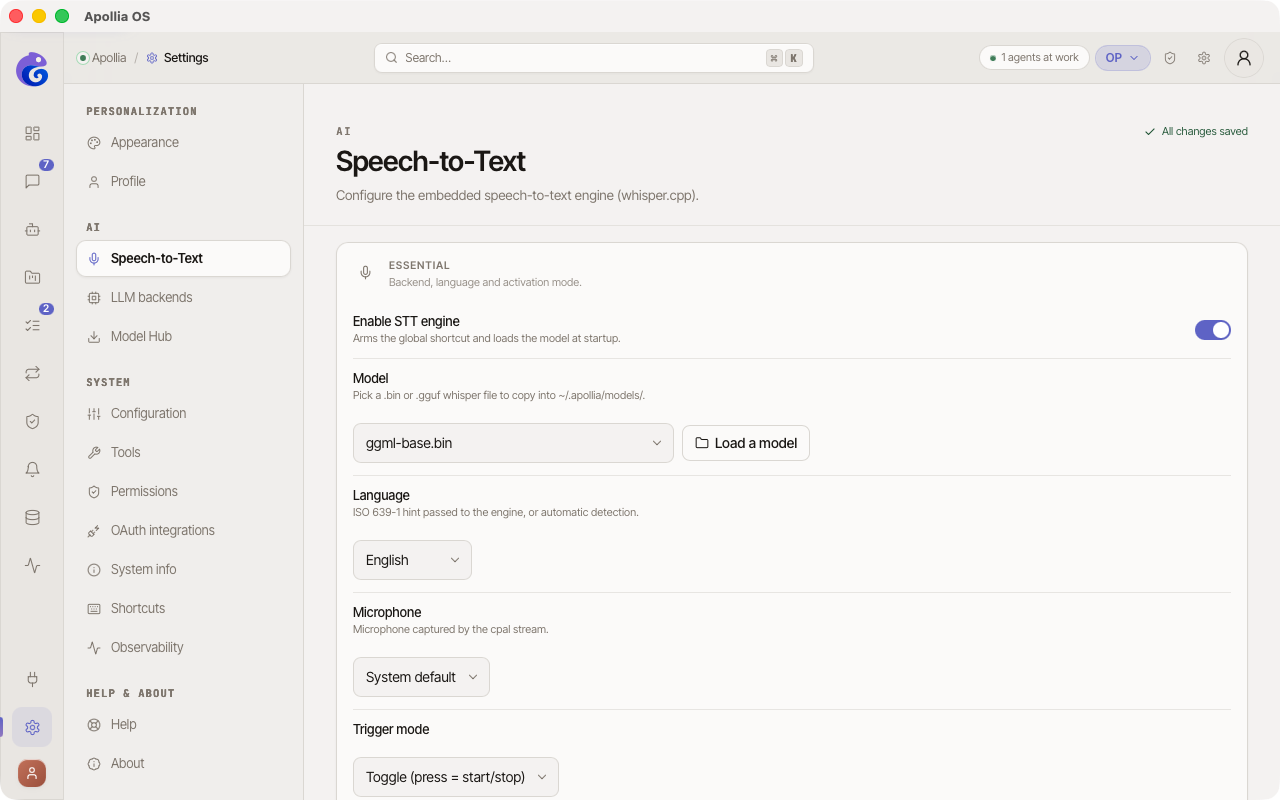
In the sidebar, click Settings, then the Dictation section.
-
Check that a model is named under Active model. It loads on first use. If none is named, download a dictation model from the AI screen, or click Load a model to pick a model file you already have.
-
Select the dictation Language in the picker. It offers thirteen languages plus Auto-detect; the exact list is in Configuration. Naming the language improves accuracy noticeably, and auto-detection is unreliable on short recordings.
-
Select your microphone in the Microphone picker. Leaving it on the system default is fine until a virtual device (BlackHole, Soundflower, an aggregate device) becomes that default, in which case Apollia records silence. Naming the device removes the ambiguity.
-
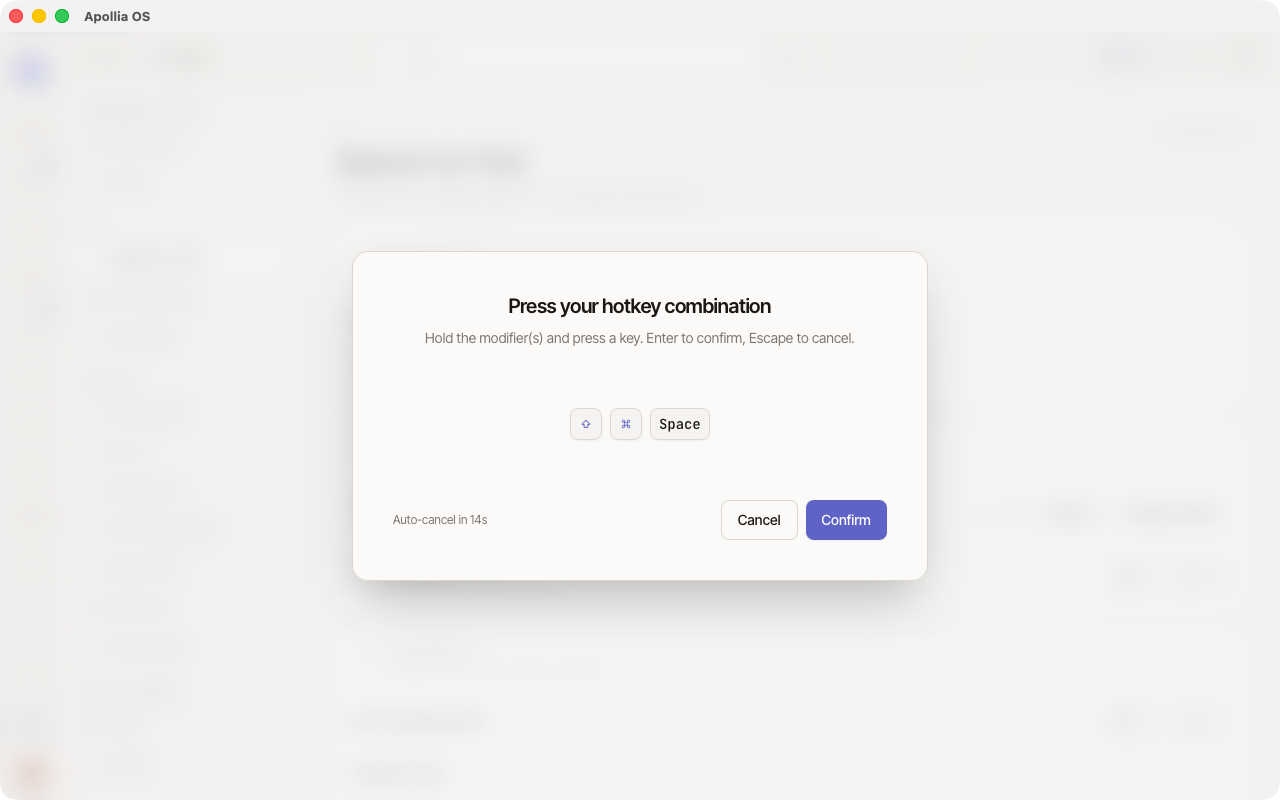
Click the Global hotkey field. A window prompts you to press the key combination you want (for example Cmd + Shift + Space).
-
In the Trigger mode picker, choose one of the two modes:
- Toggle (press = start/stop): a first press on the shortcut starts recording, a second one stops it.
- Push-to-talk (hold): you hold the shortcut down while you speak, and transcription starts when you release it.
For the rest of this procedure, choose Push-to-talk (hold).
-
Save. Dictation settings apply to the next dictation; there is nothing to restart.
-
Before leaving the page, press Test and speak a few words. The bars must follow your voice, and the recognised text appears underneath. Flat bars mean the selected device is delivering nothing.
-
Open a chat from the sidebar.
-
Hold your shortcut down. A full-screen dark overlay appears with a bar audio visualiser. Speak naturally. On screen: the full-screen recording overlay, with the bar audio visualiser and the text {hotkey} to stop · Esc to cancel.
-
Release the shortcut. The transcription is injected into the input field through the clipboard.
Note: the transcription is inserted by simulating a paste (
Ctrl+V/Cmd+V). The input field must be focused to receive the text. -
Read it back, fix it if needed, then press Enter to send.
Verification
A spoken sentence of a few seconds shows up transcribed in the input field, exactly once, without any data leaving your machine.
What happens when nothing was heard
Silence is not transcribed. When every moment of a recording sits below the silence threshold, Apollia says that nothing audible was captured instead of sending the audio to the model. This matters because a speech model handed silence does not return an empty result: it returns plausible sentences it was never given, and those used to reach the operator looking exactly like real transcriptions.
If it does not work
- No transcription: name your microphone in the Microphone picker rather than relying on the system default, then read Voice dictation transcribes nothing.
- Shortcut ignored: another application may be capturing the same combination; pick a less common one.
- Rough transcription: check that the selected language matches the one you speak, and consider a larger Whisper model.
- The text does not show up in the field: make sure the chat input field is focused (click it) before using the shortcut.
Technical reference: Apollia reference - supported engines, Whisper model sizes, audio formats, latency optimisations.