Chat with your AI
For any operator who wants to start a dialogue with their AI: open a conversation, send messages and get answers that fit the context.
Prerequisites
- A model answers: one installed on this machine or one served by a server, set up in the AI screen.
- (Optional) An agent is installed if you want to talk to a specialised agent.
Steps
-
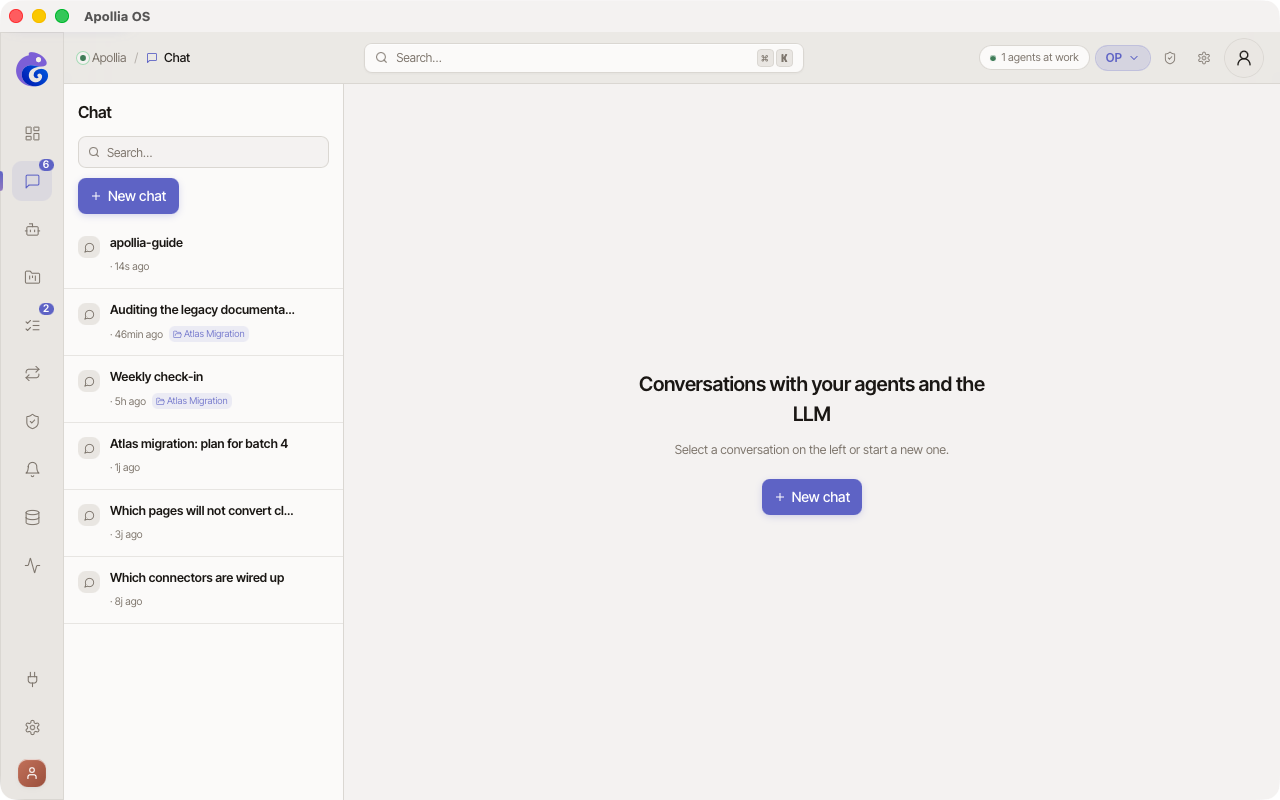
In the sidebar, click Chat. The list of your conversations shows on the left, the input area in the middle.
-
Click New chat at the top of the list. A blank conversation opens.
-
(Optional) To choose who answers, click the selector at the top of the conversation. One list opens, with your agents first, then your models. An agent you choose opens a new conversation with it; a model you choose becomes the model of the current conversation.
-
Type your instruction in plain language in the input field at the bottom. Be specific: "Summarise this file in 5 bullet points" works better than "Help me".
-
Press Enter or click Send. The answer streams in, word by word.
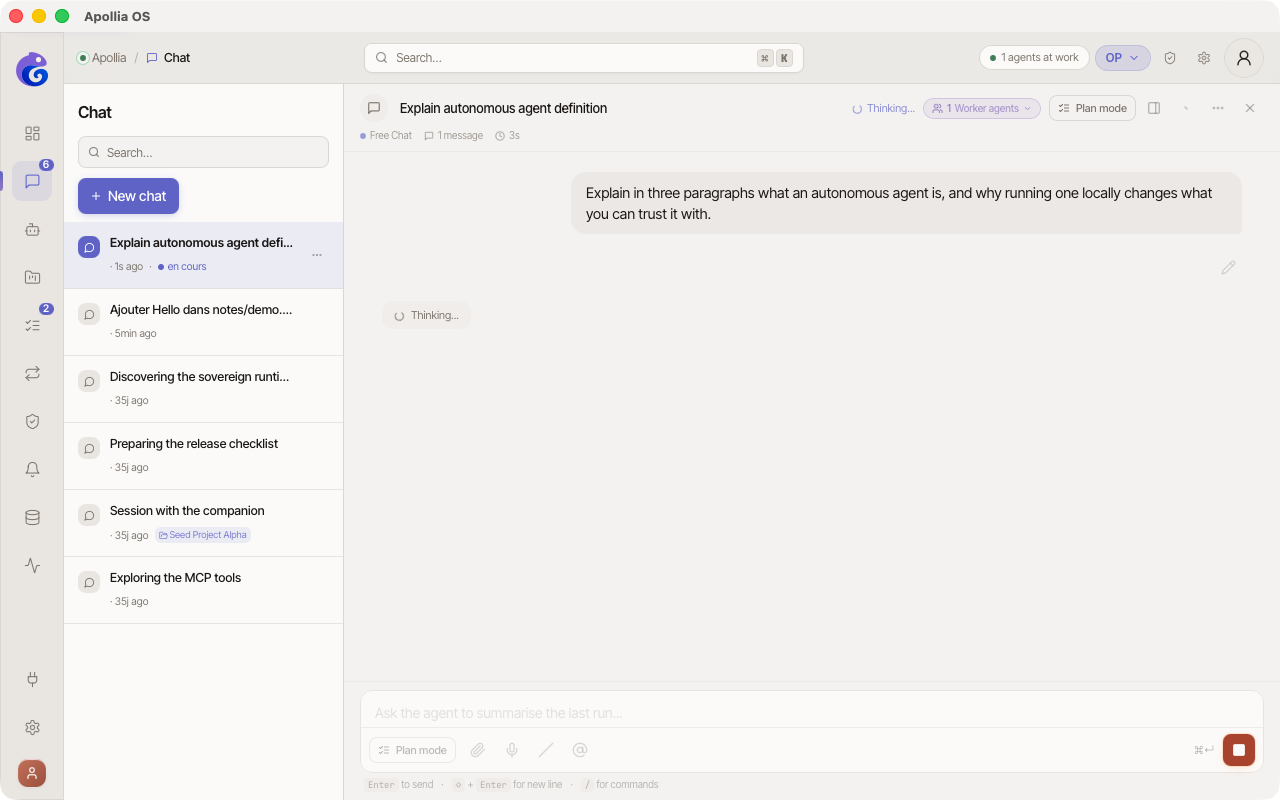
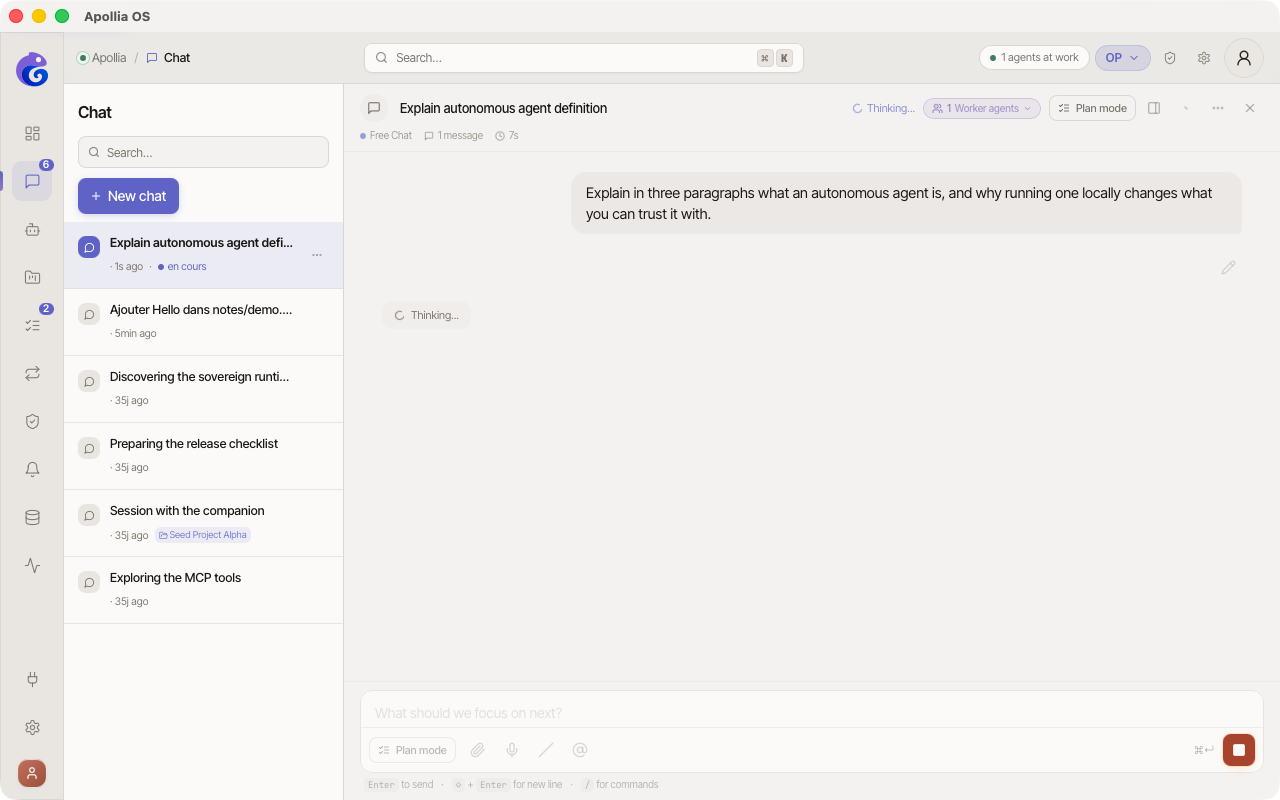
- Ask your follow-up questions in the same thread. The AI keeps the whole conversation history.
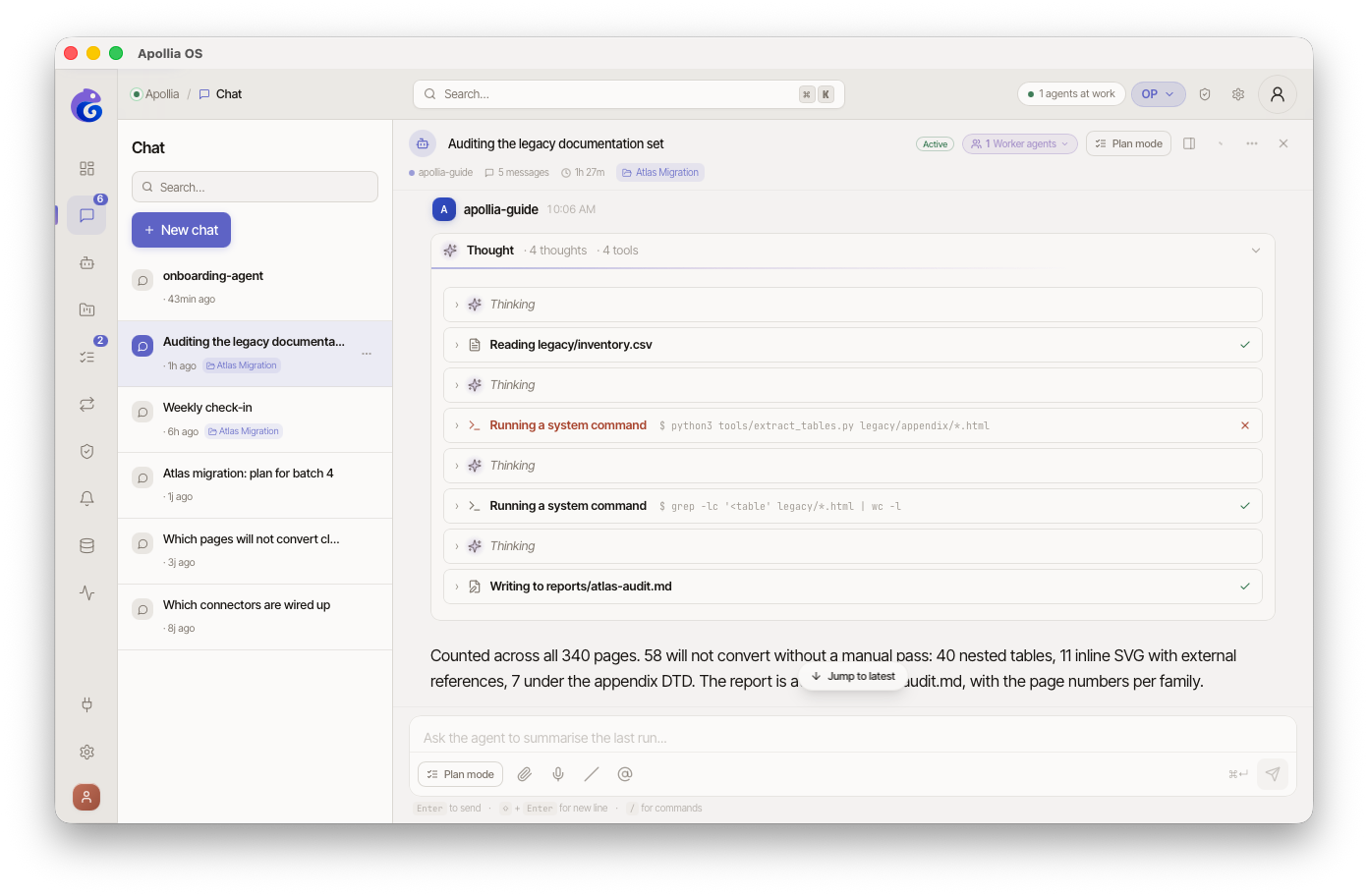
- Above the answer, a summary line says how much the turn thought and how many tools it used. Under it, the turn is laid out in the order it happened: a thought, then the action it led to, then the next thought, and so on. Every row is collapsed and expands to its own detail, the reasoning as written, a tool call as a plain-language account. With the developer mode on, the raw data of the step is added under that account.
-
A tool call that fails is marked as such, with a red cross rather than a green check, and stays marked when you reopen the conversation later. A call you refused is shown as refused, which is a different thing from one that ran and failed.
-
If the AI wants to perform a sensitive action (write a file, run a command), it asks for your agreement in the conversation: see Approve or reject an action.
-
To organise your conversations, click the menu at the top of the conversation: Rename or Delete.
- To the right of the input field, a ring with a percentage tracks how full the model's context window is. Hover it to read the detail in tokens. The percentage comes from the token counts the engine itself reports on each answer; when the engine reports none, the gauge shows
--rather than a made-up number. Past 90 % the gauge turns amber: consider starting a fresh conversation. By default, the oldest exchanges are summarised when the conversation reaches the model's limit.
Verification
Your conversation shows up in the list on the left with a title and the date of the last message. You can reopen it at any time, the history is kept.
If it does not work
- No answer: check in the AI screen that a model is installed or that your server answers.
- Answer in error or truncated: choose another model in the selector of the conversation, or read The AI provider does not respond.
- The AI does not know about your files: check the sources of the agent you talk to, and grant it the folder that holds them in Connections.
Concept: Apollia explanation - understand how a conversation with an agent differs from a conversation with a model alone.