Voice dictation transcribes nothing
For operators who press their dictation hotkey without seeing any text appear: get a working transcription back in a few minutes.
Quick checks (in order of likelihood)
1. The keyboard shortcut is not recognized
The dictation hotkey can clash with a system shortcut (Spotlight, screen capture) or with another application.
Solution:
- In the sidebar, click Settings, then the Dictation section. Check that Enable STT engine is on: it arms the global shortcut.
- Find the Global hotkey row: the current combination is shown as keys.
- Click Change hotkey: a capture dialog opens. Hold the modifier keys and press the new key, then validate with Confirm or Enter. Save the section.
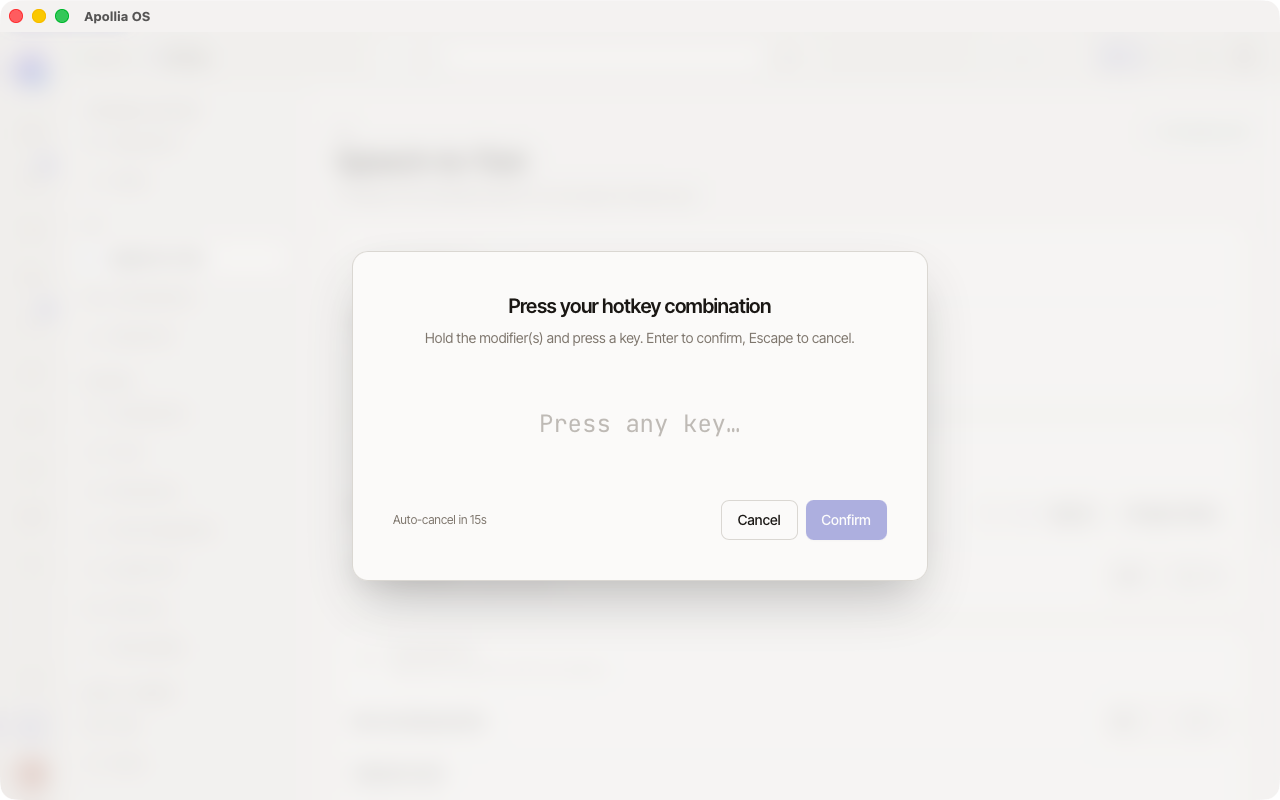
- Leave the dialog with Escape to cancel.
- Test the hotkey again: the recording must start as soon as you press it.
2. The dictation model is not downloaded
Apollia transcribes on your machine with a dictation model. With no model, the dictation ends with "No dictation model is loaded. Choose one in the settings."
Solution:
- Open Settings → Dictation and read the Active model line.
- If it reads Model not loaded, open the AI screen, click Discover models, choose Dictation and download the one marked Recommended. A model file you already have can be added with Load a model, in Settings → Dictation.
- Go back to Settings → Dictation, choose the model in the Model list and save: the Active model line then shows its name.
3. Your system microphone is muted or wrongly selected
If the microphone is disabled at the operating system level, Apollia hears nothing. It says so rather than staying silent: dictation ends with "Nothing audible was captured. Check that the right microphone is selected and not muted."
A virtual input device is a common cause. Tools such as BlackHole, Soundflower or an aggregate device appear as microphones and can end up being the system default, in which case Apollia records a stream nobody is speaking into.
Solution:
- Open Settings → Dictation and use the Microphone picker to name the microphone explicitly, rather than relying on System default.
- Save. The choice applies to the next dictation, with no restart.
- Press Test on the same page and speak: the bars must follow your voice. Flat bars mean the selected device is delivering nothing.
- If nothing moves, unplug and plug the microphone back in (or raise the input volume).
4. Apollia is not allowed to use the microphone
On first use, the system asks for microphone access. If it was denied, Apollia stays silent.
Solution:
- In the Privacy settings of your system, open the Microphone section.
- Check that Apollia appears in the list of allowed applications and that the box is ticked.
- If it is not, tick it, then restart Apollia.
5. The transcription language does not match
The dictation model transcribes according to the configured language. A wrong language produces incoherent text, or nothing useful.
Solution:
- In Settings → Dictation, open the Language picker.
- Select Français (or the language you actually dictate in). Leaving it on Auto-detect lets the model decide, which is unreliable on short or noisy recordings.
- Try again with a short test of a few seconds.
6. The microphone stays lit and the dictation never finishes
A dictation always ends, whether or not it produced text. If the microphone button stays red without a result, the run reports why instead of leaving you waiting: no microphone detected, nothing audible captured, recording too short, no model loaded, or a transcription error.
Solution:
- Read the message shown next to the composer, or under the Test dictation card in Settings → Dictation.
- Act on what it names: it points at the capture device, the model, or the recording itself.
- If the button ever stays red with no message at all, that is a defect worth reporting: the outcome should always be stated.
If nothing works
- Go to Transcriptions (visible in the sidebar with the developer mode on) to see whether recent attempts produced empty or incoherent content: this helps narrow the problem down.
- Download a larger dictation model from the AI screen, with Discover models, if your dictations are consistently inaccurate.
- Dictation settings apply on the next dictation, with no restart. Restarting is only needed if the application itself becomes unresponsive.
Technical reference: Apollia reference.