Track a trigger's history
For operators who want to check that an automation did run overnight, or understand why a run was skipped or failed.
Prerequisites
- An automation already created.
- At least one past run (manual through the play icon, or scheduled).
Steps
-
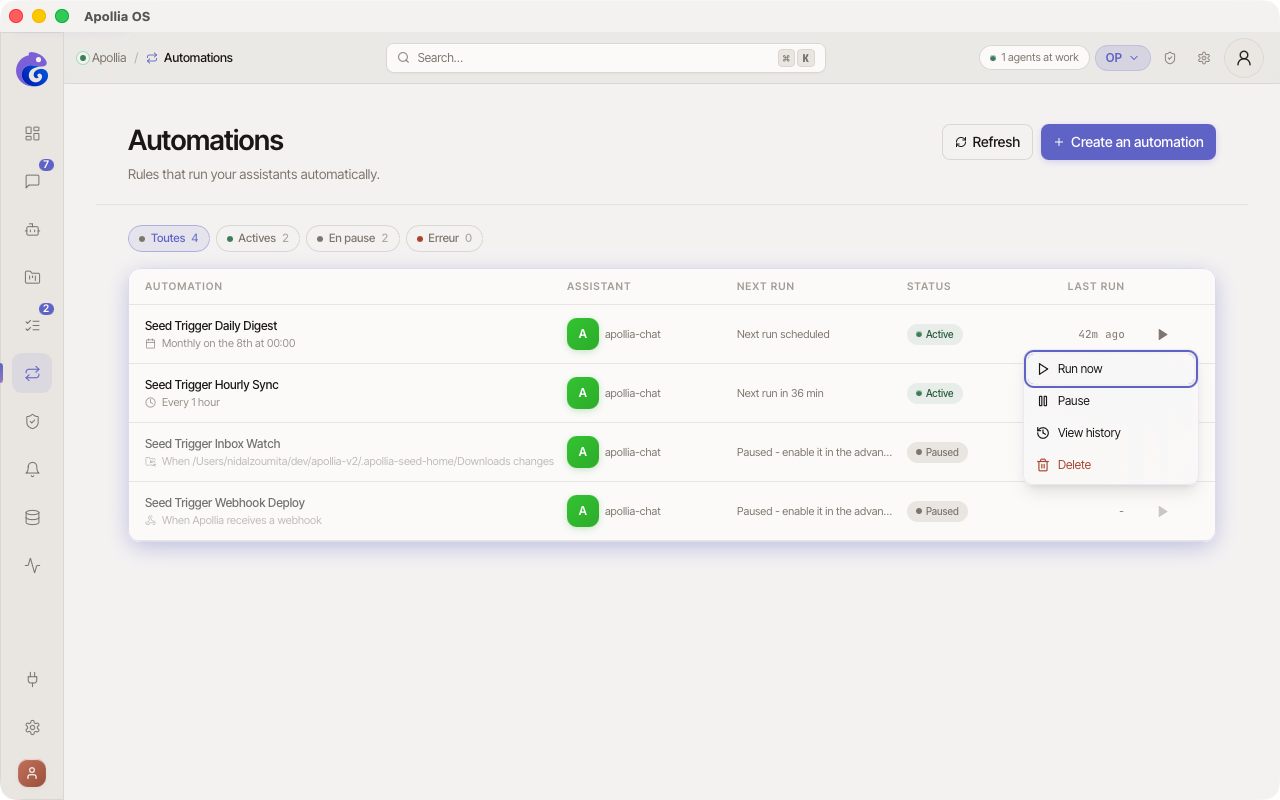
In the sidebar, click Automations.
-
Find the row of the automation you care about in the table. Hover it to reveal the actions on the right.
-
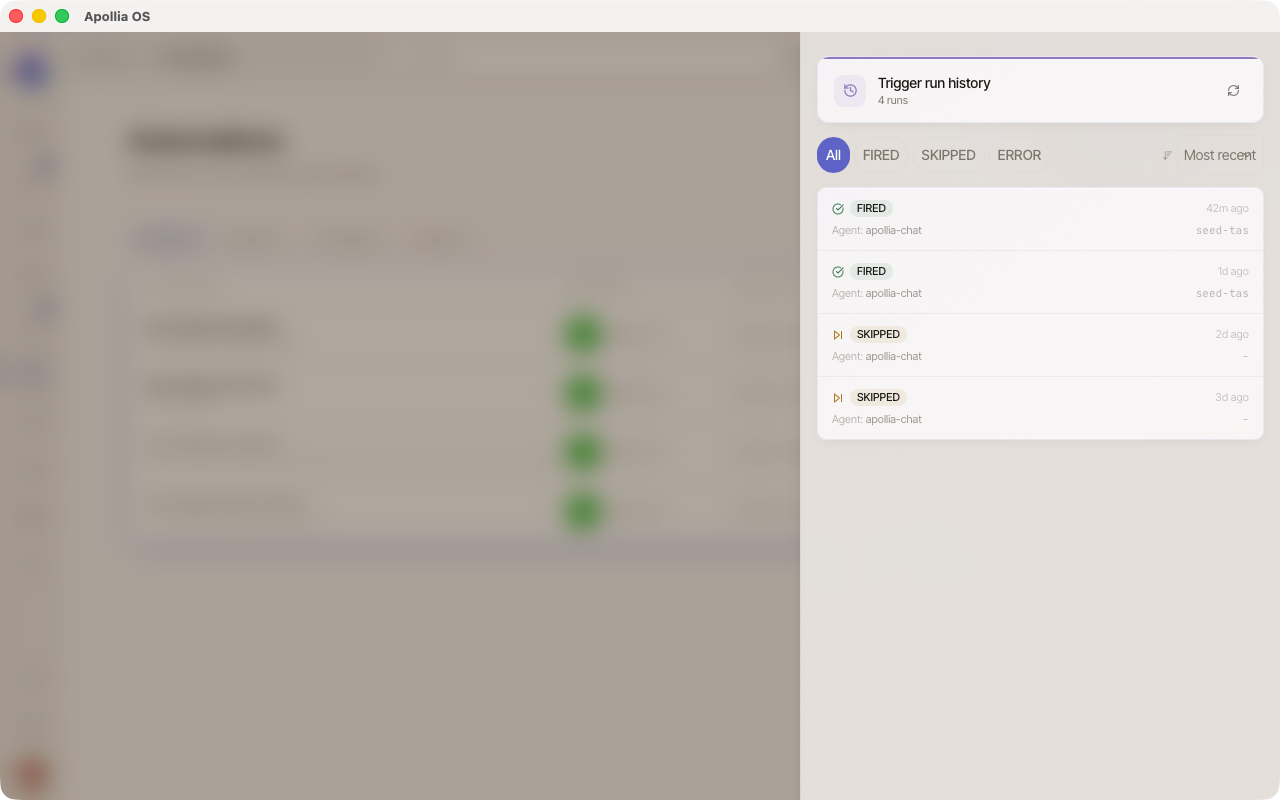
Click the ⋯ icon (three dots) on the right of the row → View history. A sliding panel opens from the right, titled Trigger run history, with a counter at the top showing the total number of events.
-
Each row of the list already carries the essentials - no need to click to open a detail view:
- Status (on the left) - coloured FIRED / SKIPPED / ERROR badge.
- Relative timestamp on the right (e.g.
5min ago) - hover it to see the exact date and time. - Agent targeted by the run.
- Short identifier of the task created (first 8 characters, or
-if no task was produced). - Reason shown in red on a dedicated line for ERROR statuses.
-
Learn the possible statuses:
- FIRED - the run did happen and a task was created for the agent. This status says nothing about the outcome of the task itself: to know whether the agent succeeded at its work, see View an agent's logs.
- SKIPPED - the run was skipped because an earlier run was still in progress. Behaviour controlled by the "if a run is already in progress" setting of the advanced mode (queue or drop).
- ERROR - the run itself failed (before even creating the task). The reason shows in red on a dedicated line right below.
-
Filter the list when there are many runs:
- Click a status chip (All / FIRED / SKIPPED / ERROR) to see only that status.
- Use the sort menu at the top right of the filters to order by: Most recent (default) or Oldest.
- The counter at the top shows the number of runs displayed vs total (e.g.
4 / 27 runs). - If no run matches, a Reset filters button appears.
-
Refresh the list without closing the panel: click the
↻icon at the top right of the panel. To close the panel, click outside it or use theEsckey.
See the result of the associated task
The History panel only shows the trigger events, not the detail of what the agent produced. For that:
- Note the short task identifier shown on the FIRED row.
- Close the panel, go to Agents.
- Open the logs of the matching agent (View an agent's logs) and find the task by its identifier prefix.
Check the next run
The History panel does not show the next due date. It is visible directly on the row of the Automations table, in the Next run column (for example "in 2h" or "tomorrow 08:00").
Verification
The history shows at least one row with the expected status. For an automation that runs without a hitch, you will see a series of green FIRED entries.
If it does not work
- The history is empty: no run has happened yet. Start one manually with the ▶︎ icon on the table row, then click ↻ in the panel to refresh.
- Every run is SKIPPED: the previous run never finished. Open the sheet of the agent in Agents and read its logs to see whether the current task has been in the WORKING status for too long. If so, see An agent is stuck. Once the task is unblocked, future runs will go back to FIRED.
- Every run is in ERROR: read the reason shown in red under each row. Frequent causes: agent uninstalled, invalid webhook secret, invalid cron expression.
- I do not see a task identifier associated with a FIRED entry: rare; the task may have been created then deleted right away. Search by identifier prefix in the logs of the agent.
Technical reference: Apollia reference - detailed reading of the FIRED/SKIPPED/ERROR statuses,
on_busybehaviour, troubleshooting stuck runs.