Schedule a trigger
For operators who want an AI task to run on its own, at a fixed time or on an event, with no manual step.
Prerequisites
- At least one agent listed in the Agents screen.
- A model that answers, set up in the AI screen.
- You know how often you want the task to repeat.
Steps - create an automation in plain language (default path)
-
In the sidebar, click Automations.
-
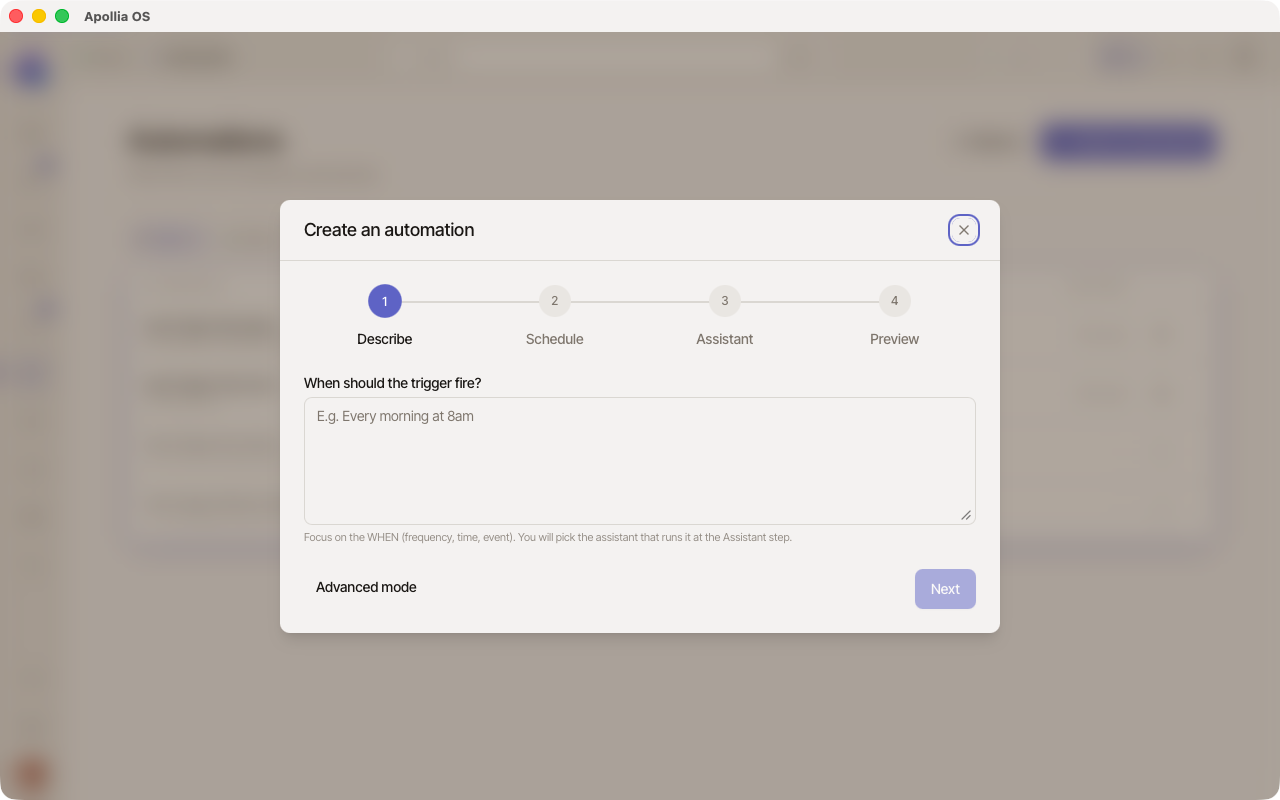
Click the Create an automation button at the top right. A 4-step wizard opens (Describe → Schedule → Agent → Preview).
-
Describe step - Describe the when: at what moment or how often the trigger should fire. Examples: "Every morning at 8am", "Every Monday at 9am to prep the week", "Every 30 minutes". You do not need to name an agent at this stage: a trigger is independent from the agent that will run it, and you pick that agent at the Agent step. Click Next; Apollia parses the sentence (the button label switches to "Parsing…").
-
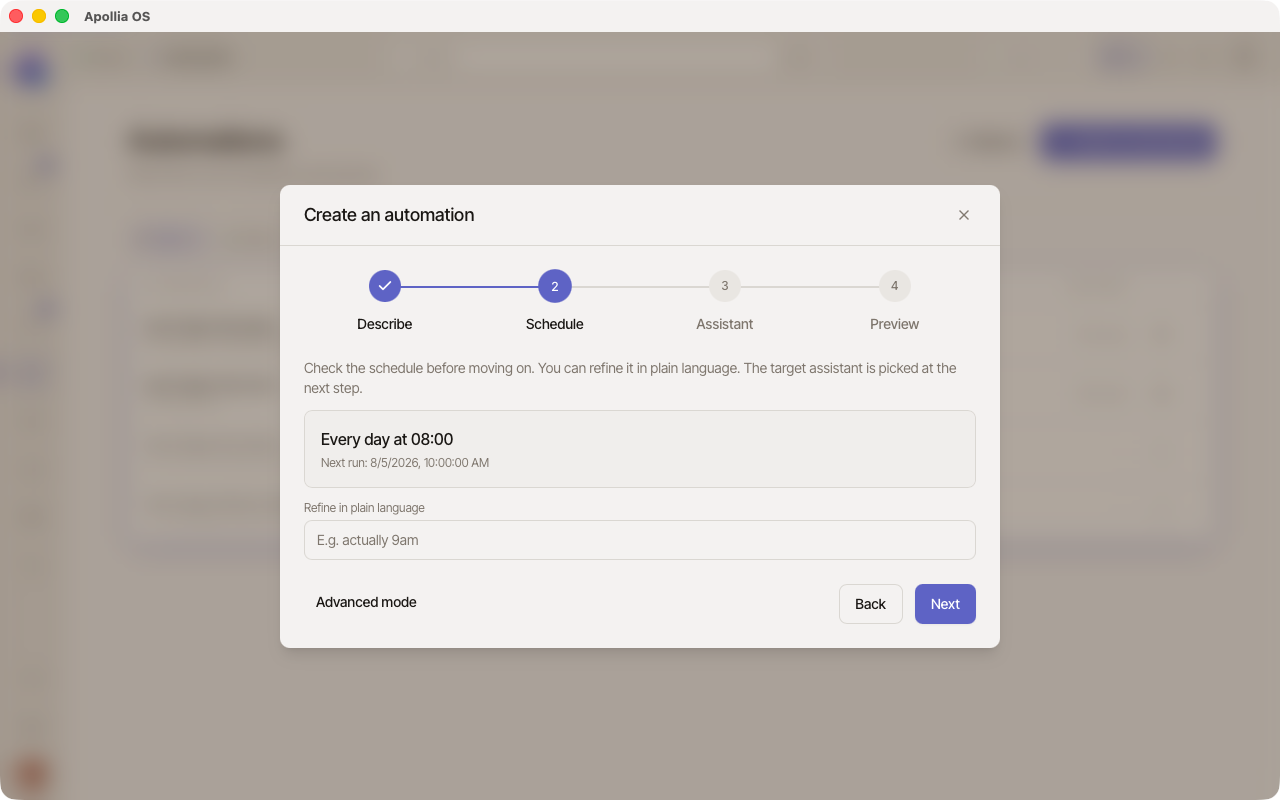
Schedule step - Apollia shows how it read your sentence in a box (for example "Every day at 08:00") with the next scheduled run. If something looks off, adjust it in plain language in the field at the bottom ("actually 9am") and press Enter - the schedule updates. If Apollia needs a detail about the calendar (missing time, ambiguous day…), an orange banner lists the points to clarify; fill them in through the refine field. A missing agent in the description does not block this step.
-
Agent step - Select the agent that will run this trigger. A trigger always launches one agent at a time. If your sentence named an existing agent, it is preselected and a sub-label reads "Recognized automatically: …". Otherwise, an orange box reminds you that no agent was recognised, and you pick it from the dropdown. Only installed agents show up.
-
Preview step - Apollia sums the trigger up: the schedule in plain words, the target agent, and the prompt sent at trigger time if one was detected. Click Activate this automation.
-
A notification confirms the creation. The automation appears in the table with a green Active indicator, and the Next run column shows the scheduled date.
Run it manually and follow it
-
To check that everything works without waiting for the next due date, hover the automation row and click the play icon ▶︎ on the right. A run starts immediately and a toast confirms the launch. On screen: an automation row on hover, with the Play icon visible on the right and its Run now tooltip.
-
To review the run history, click the ⋯ icon on the row (visible on hover) → View history. See the page Track a trigger's history.
Modify an existing automation
An automation is edited in place. Changing a schedule no longer means deleting and recreating, which used to invalidate the webhook secret and force the calling service to be reconfigured.
-
On the automation row, click the ⋯ menu → Edit. With the row focused from the keyboard, the E key does the same.
-
The Edit trigger window opens on the stored definition, with the same fields as advanced mode: target agent, trigger type and its parameters, the Enabled toggle, the behaviour when a run is already in progress, and the input template.
-
The identifier is greyed out: it addresses the automation and cannot be changed after creation. Everything else is editable, including the trigger type.
-
For a webhook, the stored secret never reaches the window. The field reads "Secret already stored, leave empty to keep it": leave it empty and the current secret stays in place, fill it and it is replaced, which means the calling service has to be reconfigured with the new value.
-
Click Save. A confirmation names the automation, the list reloads, and the engine restarts on the new definition.
An automation declared in apollia.toml is not editable here. The window says so and stops: those triggers run in the engine but have no stored definition to rewrite. Edit the file: the change is read the next time Apollia starts.
Advanced mode (optional)
For operators who prefer to enter the technical parameters directly (exact cron expression, precise file path, webhook secret…), the wizard offers an Advanced mode link at the bottom left. It opens a detailed creation window where you choose:
- The target agent (at the top).
- The trigger type among five cards:
- On a schedule - daily, weekly, or at a specific time.
- At regular intervals - every 30 minutes, every hour, and so on.
- Once at a date/time - at a given date and time.
- When a file or folder changes - watches a specific file or a folder (recursive option to include sub-folders).
- Via an external URL - fired by an incoming HTTP call (webhook).
- The parameters of the chosen type - details below.
- An Enabled toggle (true by default).
- An Advanced settings section, collapsed by default: customisable technical name (ID), behaviour "if a run is already in progress" (queue or drop), and the input template sent to the agent.
Parameters per type - advanced mode
- On a schedule: pick a preset (Every 15 min, Every 30 min, Every hour, Every day at…, Every week on…) or Custom schedule to enter a raw cron expression (
min hour day month weekday). The Every day at… and Every week on… presets show a time picker; Every week on… adds chips to choose the days. At least one day is required: leave every chip unselected and the schedule is not built, and the form says so under the chips. - At regular intervals: pick a preset chip (
15m,30m,1h,6h,12h,24h) or Custom interval to enter a value and a unit (minutes, hours or days). - Once at a date/time: a date picker and a time picker side by side.
- When a file or folder changes: a Watch path field (accepting a specific file path or a folder path), three chips to toggle the event type - Create, Modify, Delete - and an Include sub-folders toggle. That toggle turns on recursive watching: every sub-folder (at any depth) is then watched too. Off by default, it only has an effect on a folder path; it is ignored for a specific file.
- Via an external URL: an explanation box (the receiving URL is shown after creation) + a Secret field with a Generate button to produce a random key.
Verification
The automation shows up in the Automations table with:
- A green Active chip (animated glowing dot).
- A Next run column showing the scheduled date and time.
- A Last run column that fills in after the first trigger.
If it does not work
- The target agent does not show up in the list: it is not installed. Install it from the Agents screen, then reopen the wizard.
- Apollia did not understand my sentence: a "We couldn't understand automatically" message appears. Rephrase more simply, stating the frequency and the time clearly (e.g. "Every day at 9am").
- The Schedule step lists points to clarify: the orange box at the top lists the calendar ambiguities (for example "missing time"). Type the detail in the refine field and confirm with Enter. If the only thing Apollia did not find is the agent, you can still move to the next step: the selection happens at the Agent step.
- The "Activate" button is disabled: something is missing - check that the Schedule step has no calendar ambiguity left and that an agent is selected.
- The immediate run (▶︎ icon) is greyed out: the automation is paused. Resume it from the ⋯ menu on the row, or open Edit and turn the Enabled toggle back on.
- The Edit window refuses to open the automation: it comes from
apollia.toml. Change it in the file, then restart Apollia.
Call a webhook from an external service
A webhook automation does not fire on its own: an outside service calls it. Apollia refuses the call if it is not signed, which prevents anyone who knows the URL from launching your agent.
The address is the one shown at creation time, of the form:
POST http://127.0.0.1:7771/webhooks/<id-de-l-automatisation>
Note that it is not under /api/v1. It does, however, sit behind the same
API token as every other route reachable over TCP: the token layer is applied to
the whole router and inspects no path, so the signature comes in addition to
the token, not instead of it. A call carrying only a signature gets a 401.
That makes the endpoint reachable from a service you control and configure, and
not from one that only knows how to sign, such as a GitHub webhook. Either send
the token as well, or turn the layer off with require_token = false under
[api], which removes authentication from every TCP route, not just this one.
The signature goes into the X-Apollia-Signature header, in the
sha256=<hexadecimal> format. It is the HMAC-SHA256 of the raw body of the
request, byte for byte, with your secret as the key. Signing a reformatted
version of the body produces an invalid signature.
Example with curl and openssl:
SECRET='your-secret-32-characters-minimum'
BODY='{"source":"github","action":"push"}'
SIG=$(printf '%s' "$BODY" | openssl dgst -sha256 -hmac "$SECRET" -r | cut -d' ' -f1)

curl -X POST http://127.0.0.1:7771/webhooks/<id-de-l-automatisation> \
  -H "Authorization: Bearer $(cat ~/.apollia/api-token)" \
  -H "X-Apollia-Signature: sha256=$SIG" \
  -H "Content-Type: application/json" \
  -d "$BODY"
The possible responses:
| Code | What it means |
|---|---|
200 | The event is accepted, the automation starts |
401 | API token missing or wrong, or X-Apollia-Signature header missing, or signature that does not match |
404 | No webhook automation with that identifier |
503 | The automation engine is not started |
A 401 does not say which cause applies, and that is on purpose. Check the token
first, since it is rejected before the signature is ever read, then check that you
are signing the raw body and not a reindented version.
Technical reference: Apollia reference.