Navigate with the keyboard (command palette)
For operators who want to open any page, run an action or find an agent in a few keystrokes, without reaching for the mouse.
Prerequisites
- None. The command palette is available everywhere in the application.
Steps
-
From any screen, press Cmd+K (macOS) or Ctrl+K (Windows and Linux). The palette opens in the middle of the screen.
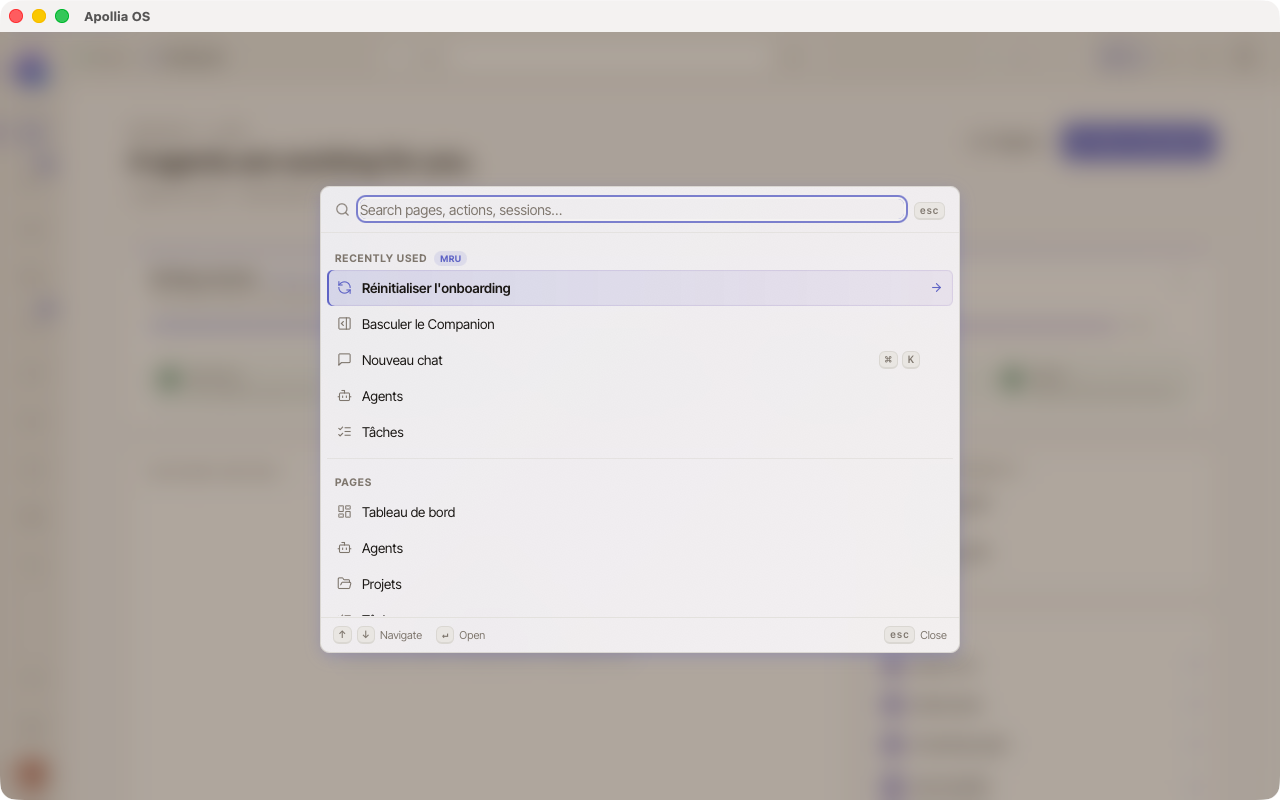
Note: there is only one shortcut to open it. Cmd+K (or Ctrl+K) covers every case: page, action, shortcut. Type a few letters to narrow the list.
-
Type a few letters of what you are looking for. The list filters in real time. For example, typing agent gives: Agents (page) and Create agent.
Entries are grouped by category (Recently used, Pages, Actions, Sessions, Settings, Help) and the sections change depending on the current page.
-
Use the Up and Down arrow keys to move through the results. The selected row is highlighted.
-
Press Enter to run the action or open the matching page. The palette closes on its own.
-
Press Esc at any time to close it without doing anything. A second Cmd+K reopens it empty.
Quick cheatsheet
To see at a glance the shortcuts available in the current context, press ? (or Shift+/) with no modifier. A condensed overlay appears with the combinations that are useful on the screen you are on. Press Esc again to close it.
Full list of shortcuts
To browse every shortcut grouped by category (Global, Navigation, Chat, Settings, Companion), open Settings, section Chat, and go down to the All shortcuts block. It offers a search to find a combination by name ("sidebar", "new chat", "help"…). The same list opens from the palette with Open Keyboard Shortcuts page.
Read only. This list does not allow customising the combinations. The one exception is the key that sends a message, which has its own switch in the Keyboard shortcuts block of the same section.
A few useful shortcuts
- Cmd+K / Ctrl+K - open the command palette.
- ? - show the contextual cheatsheet.
- Cmd+B / Ctrl+B - collapse / expand the sidebar.
- Cmd+[ / Ctrl+[ - previous page (history navigation).
- Cmd+] / Ctrl+] - next page.
- Cmd+/ / Ctrl+/ - open or collapse the Guide tab on the current screen.
- Enter - send the current message (inside a chat); Shift+Enter starts a new line. A switch in Settings, section Chat, makes Cmd+Enter / Ctrl+Enter send instead.
- Esc - close the current dialog / chat input.
Verification
The palette opens instantly with Cmd+K / Ctrl+K, and the chosen action runs correctly after pressing Enter.
If it does not work
- Cmd+K opens nothing: another piece of software (Slack, Notion, a browser…) may be intercepting the combination first. Click inside the Apollia window so that it gets the focus, then try again. If the problem persists, the other software has to be quit or its shortcut changed.
- The action I am looking for does not show up: some entries are contextual. For example, Recent sessions / Templates / Slash commands only appear if you are on the Chat page. Navigate to the matching page first, then reopen the palette.
- I want to customise a shortcut: the All shortcuts list of Settings, section Chat, is read only. Only the key that sends a message can be changed, in the same section.