Review and clean up memory
For operators who want to see what their AI has retained, and delete what should no longer be there.
Prerequisites
- At least one agent that has already held a conversation or run a task.
How an agent remembers
An agent keeps a memory of its own only when the The agent's memory source is checked on its sheet, under Sources. With that source, the agent keeps notes with a tool, under a name it chooses, and finds them again in a later conversation or a later task. It can also drop a note it no longer needs. Its memory is one space, named after the agent, that no other agent writes to. Neither keeping a note nor searching its memory asks for your consent: the agent acts on its own space.
Nothing from that memory is added to a conversation on its own. The agent searches it when it needs to.
An agent without that source keeps no memory of its own, and its sheet says so.
Where to find what
Three distinct places, three distinct uses:
- Settings, section Profile: your profiles and the facts kept in each one. This is what the agents allowed to read your profile know about you. See My profile.
- The sheet of an agent, tab Memory: what that one agent retained. Available to everyone.
- Memory (from the sidebar, shown only with the developer mode on): the explorer of every memory namespace, with export, import and purge.
Review the memory of one agent
-
In the sidebar, click Agents, open the agent, then the Memory tab of its sheet.
-
The tab lists what the agent retained, with the number of entries. Search the memory narrows the list to the entries that match.
-
Delete, on a line, removes that entry.
-
Erase all removes everything the agent retained, after a confirmation that says how many entries go. Its sources, your files and your mails stay.
Steps
The rest of this page covers the Memory screen. It is one of the technical screens: turn the developer mode on in Settings, section Developer, and it appears in the sidebar.
-
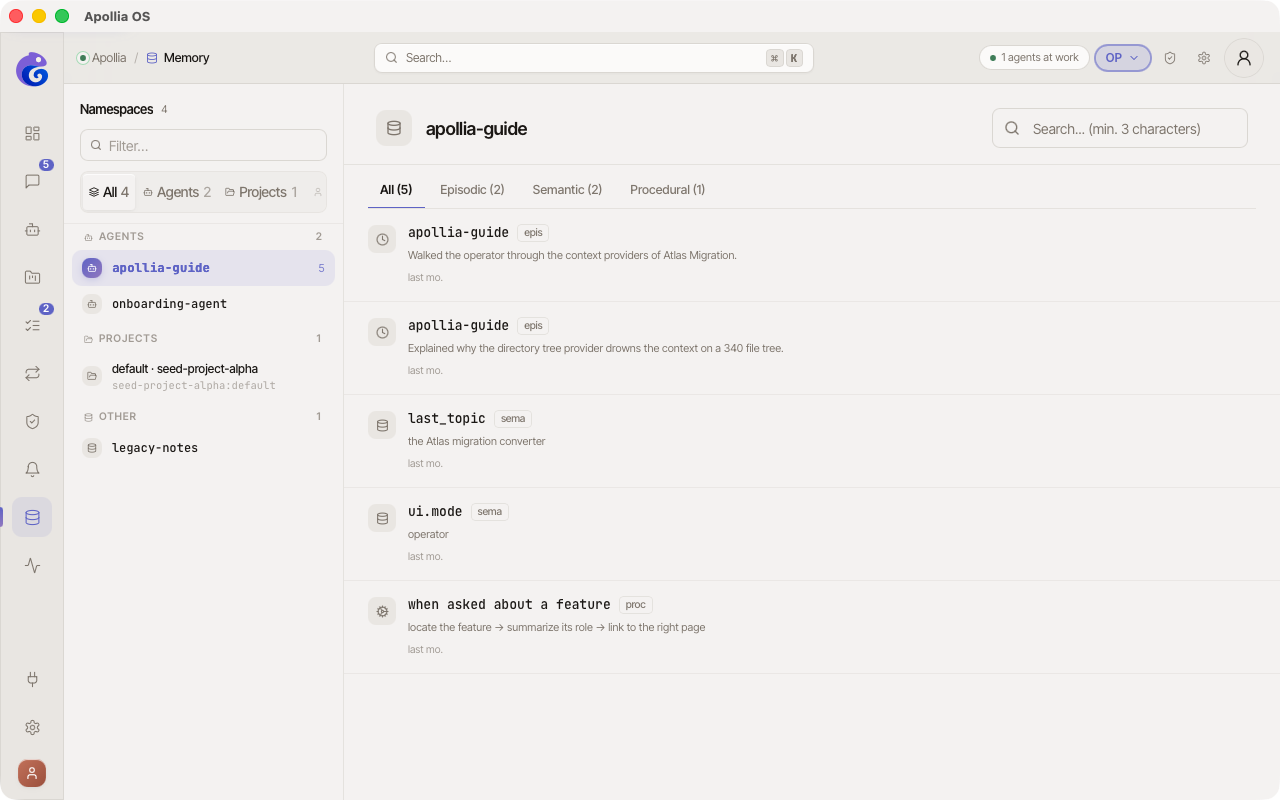
In the sidebar, click Memory. The page shows a two-column layout: the namespace sidebar on the left, the central panel with the list of entries for the selected namespace.
-
Left sidebar - the list of namespaces (one namespace = one isolated memory space). Each namespace is classified automatically:
- Profile: your shared user profile (
__user__). Read-only from this page, editing happens in Settings, section Profile. A banner reminds you of that when you select__user__. - Agents: namespaces of installed agents (one per agent, for example
veille-ia,email-triage). - Projects: namespaces of a former project (format
{project_id}:{ns}). Projects became sources in this version: the update merges each of these spaces into the space of the same name, see What became of projects. - Other: legacy namespaces or namespaces of uninstalled agents.
A segmented control at the top filters the list by category. A Filter… field lets you find a namespace by name.
- Profile: your shared user profile (
-
Central panel - the list of entries for the selected namespace, with:
- A segmented control per entry type: All / Episodic / Semantic / Procedural.
- A full-text search bar (FTS5) that queries the content.
- A breadcrumb under the filter that recalls the current namespace.
- Each row shows the type icon, the key, a preview of the value, and the relative date.
-
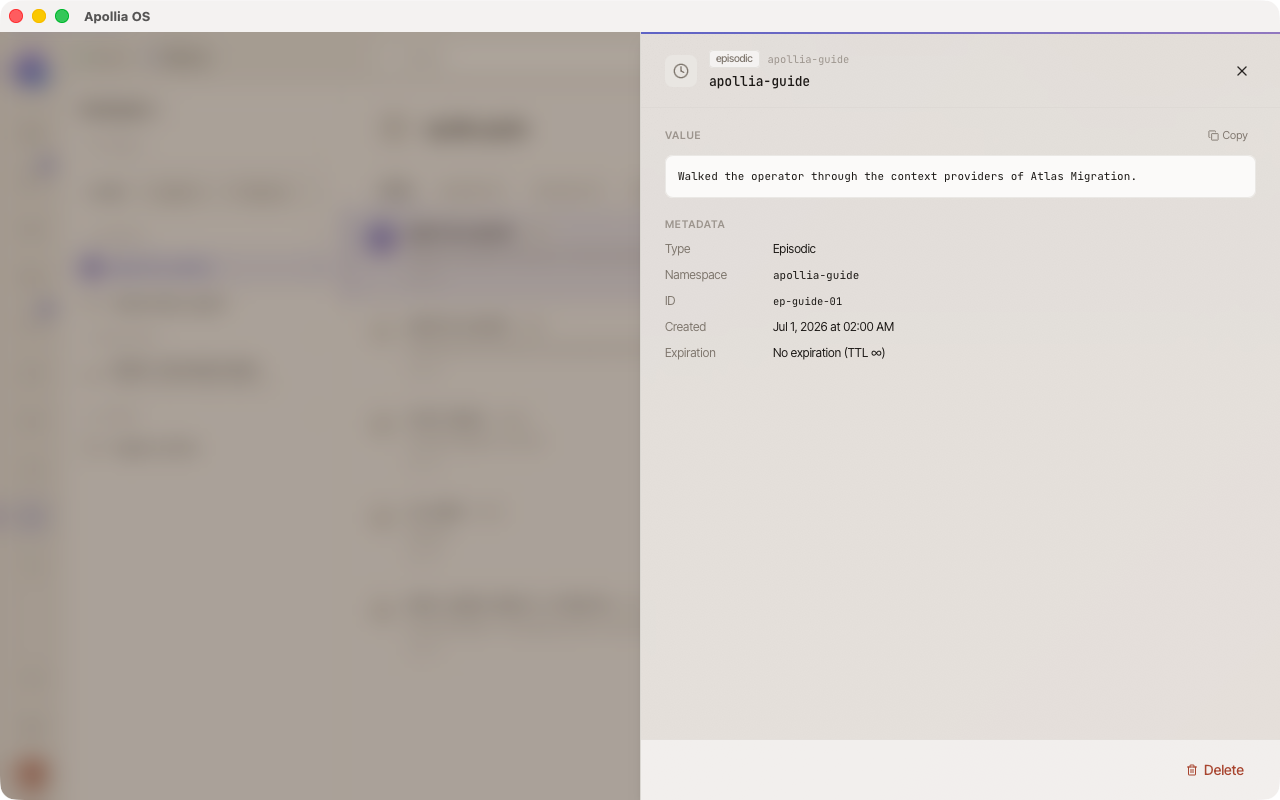
Click an entry to open the detail panel on the right. It shows the full value (with automatic JSON pretty-print when applicable), all the metadata (type, namespace, ID, dates, BM25 score in search mode), and exposes two actions: Copy the value and Delete the entry.
-
To search, type a few keywords in the search bar at the top of the central panel. Matching entries are shown sorted by relevance (BM25 score), and the breadcrumb reads "N results".
-
To delete a specific entry, two equivalent options:
- Hover the row, click the ⋯ menu at the end of the row, choose Delete, then confirm on the Confirm button that appears.
- Or open the detail panel (click the row) and use the Delete button at the bottom.
The entry disappears immediately and will not come back.
Export, import and purge a namespace
Three buttons sit at the top right of the central panel, next to the search field: Export, Import and Purge. They act on the selected namespace and are disabled until one is selected.
Export
Click Export. A save dialog opens with a name already filled in (<namespace>-memory-<date>.json). Confirm, and Apollia writes a JSON file holding the episodic, semantic and procedural entries of the namespace. The confirmation states how many entries of each type were written, and where.
Nothing is sent anywhere: the file lands exactly where you asked, on your machine.
Import
Click Import. The window asks for two things:
- Source file - a JSON file produced by an Apollia export, chosen through Choose a file.
- Strategy - Merge adds the entries that are missing and leaves the existing ones untouched; Replace empties the namespace first, then loads the file.
Replace shows a red warning in the window and asks for a second confirmation (Empty and import) before anything is deleted. Merge runs straight from the Import button. The confirmation says how many entries were loaded and under which strategy, and the list under it reloads.
Purge by age
Click Purge. This is the bulk deletion, and it is irreversible, so it comes in two steps.
-
Choose the Memory type (All types, Episodic, Semantic, Procedural) and the age in days under Older than (days).
0deletes every entry of the chosen type. -
Under the fields, a preview says how many of the listed entries would go. It is counted on the entries this page reads, which is why it is labelled as such: the exact figure is the one reported once the purge has run.
-
Click Continue, read the summary (type, namespace, age), then confirm with Purge. A message reports the number of entries actually removed.
Verification
The deleted entry no longer appears in the list, even after reloading the page. A keyword search on that entry no longer returns a result. The namespace counter in the sidebar and the type counter in the segmented control are decremented.
If it does not work
- Memory is not in the sidebar: the developer mode is off. Turn it on in Settings, section Developer, or use the Memory tab on the sheet of the agent.
- The Memory tab says the agent keeps no memory of its own: its The agent's memory source is not checked.
- The page is empty: no agent has kept anything yet. Work with an agent whose memory source is checked and come back.
- Deletion fails: the agent is writing to memory, wait a few seconds and try again.
- The expected namespace does not appear: check that the agent is installed (the agent must be listed under Agents to appear under the Agents category, otherwise the namespace falls into Other).
- You want to empty a whole namespace: use Purge with All types and
0days. To wipe every namespace at once, see Reset Apollia (factory reset), or use the CLI:apollia-os memory clear --agent <NAME> --confirm. - The purge preview announces fewer entries than the purge removes: the preview is counted on the listing this page reads, which stops at the 500 most recent conversation episodes. On a large namespace the real figure is higher, and it is the one reported at the end.
- The Export, Import and Purge buttons are greyed out: no namespace is selected. Pick one in the left sidebar.
Note: To manage the tools shipped with Apollia (web search, file reading, and so on), open Connections, section Built-in tools. The page offers each tool, its enabling and disabling and its optional configuration, see Inspect a tool.
Technical reference: Apollia reference - memory types, default retention durations, limits.